
You can share a file by email in both Monitoring and Troubleshooting. Read below to learn where to find the individual files in each case.
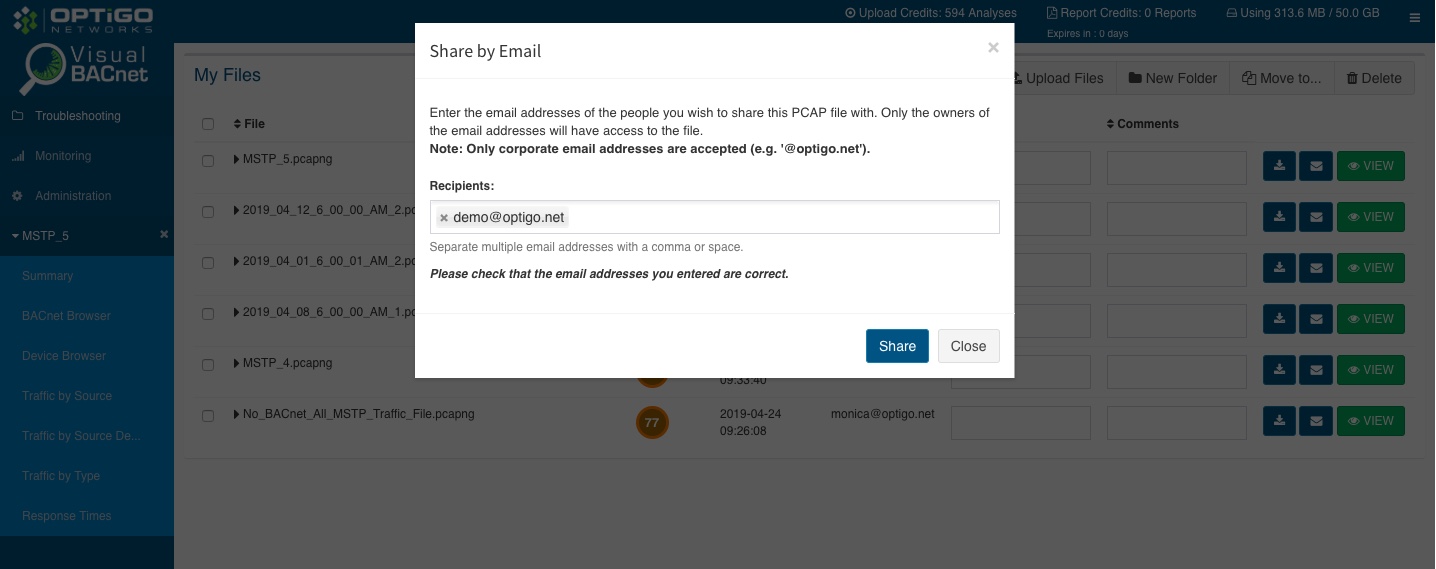
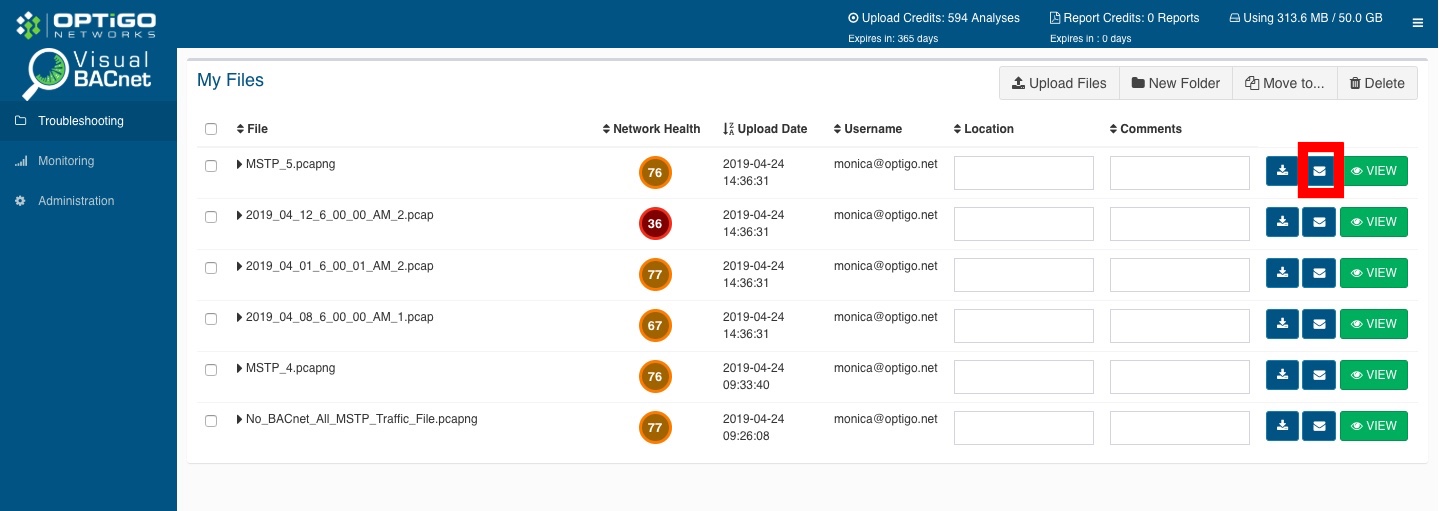
Once there, simply click on the blue mail icon on the right hand side of the file you wish to share. Note that only corporate email addresses are accepted (“@optigo.net” for example). Separate multiple email addresses with a comma or space, and hit share when you’re done.
Once a file is shared, you will see this yellow icon beside the file name:
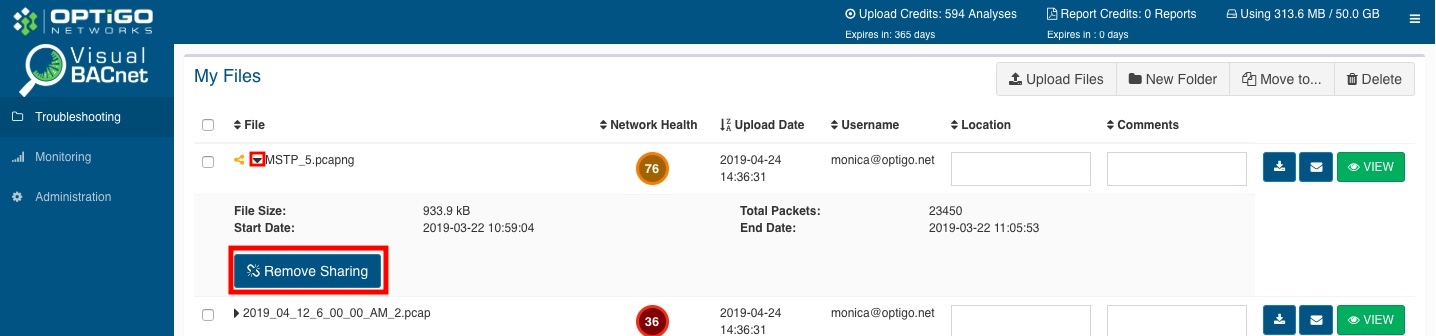
Unshare
To unshare a file, click on the black arrow beside the file name to open the file. A dropdown will open and information about the file will appear, along with a "Remove Sharing" button. Click on this and remove the user(s) you no longer want to have access to the file.
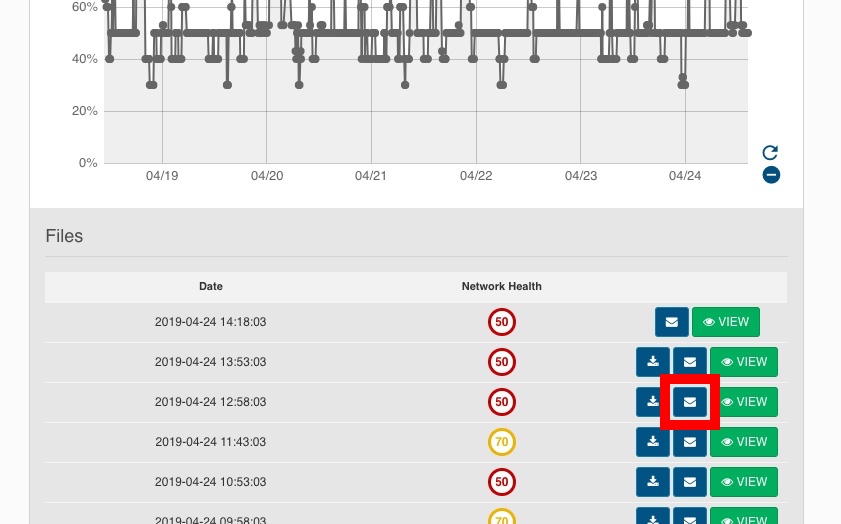
Finding the file in Site Monitoring
In a monitored site, click into a monitoring node. The status screen will show up. Scroll to the bottom and you will see the latest pcap files. Click on the blue envelope button to share a specific file.
Note that in Site Monitoring you can also share a site, area or monitoring node.
Finding the File in Troubleshooting
In troubleshooting, the home screen ("Troubleshooting") will show you a list of files. Find the blue mail icon on the right side of the file you want to share.
Comments
0 comments
Please sign in to leave a comment.