
With a Site Scope+ subscription, access to your OT networks can now be extended to those outside your organization. This can be useful for both facility managers and building owners who want to provide access to vendors or other 3rd party BAS contractors, but also for systems integrators monitoring OT networks after hand-off to the building management team.
OT Network Sharing Permissions
OptigoVN Share Permissions: Full Access vs View Only
Check Your OT Network Share Status (Sharer View)
Check Your OT Network Share Status (Sharee View)
Check Your Personal Share Status
Sharing an OT Network
To share one of your OT networks with another organization, do the following:
- Select the OT network from the sidebar.
- Select SETTINGS from the header.
- Scroll down to the External Sharing of <OT NETWORK> section.
-
Click Invite Organization or User to Share <OT NETWORK>.
- Enter one or more email addresses of the administrators or users that you want to share the OT network with, separated by commas.
- Choose the desired access type for the invitees: either 'Full' or 'View-Only'.
- Click Send share invite and Close.
What Happens Next?
Once the invitation to share your OT network has been sent, here's what to expect:
- If the OT network sharing settings for your organization and the sharee organization are open (the default), then the OT network share will be immediately approved (sharer) and accepted (sharee).
- If OT network sharing requires approval to either share or accept the share, then the appropriate administrator(s) will be contacted and the share will not be complete until both sides agree to it.
- If an invited sharee is not yet an OptigoVN administrator or basic user, and no account with the same domain (e.g. @somecompany.com) currently exists, then they will be invited to first create an OptigoVN account before accepting the share.
- If the sharee is not yet an OptigoVN administrator or basic user, but one or more accounts with the same domain (e.g. @somecompany.com) currently exist, then the administrators of those accounts will be contacted to invite the sharee to be a user in their organization and accept the shared OT network.
OT Network Sharing Permissions
By default, administrator approval is not required for outbound invitations to share OT networks, nor is it required for accepting inbound invitations.
This means that every user in your organization can share access to its OT networks with any other organization and invitations from other organizations to share their OT networks are automatically accepted.
To change your default sharing permissions:
- Select the top organization from the sidebar and then click SETTINGS in the header.
- Scroll down to the Sharing OT Networks with External Organizations section.
- Configure the outbound and inbound sharing settings as required.
OptigoVN Share Permissions: Full Access vs View Only
| Capability | Full Access | View Only |
|---|---|---|
| View all diagnostic results | ✅ Yes | ✅ Yes |
Upload new .pcap files |
✅ Yes | ❌ No |
| Run diagnostics (if Site Scope or Site Scope+ is active) | ✅ Yes | ❌ No |
| Tag, comment, and annotate results | ✅ Yes | ❌ No |
| Create folders (within captures, for organization) | ✅ Yes | ❌ No |
| Create sub-nodes (nested OT networks) | ❌ No | ❌ No |
| Delete or rename the parent OT network | ❌ No | ❌ No |
| Modify Site Scope subscriptions or settings | ❌ No | ❌ No |
📝 Note: Only the network owner (typically the organization that created the network) can create sub-nodes or manage Site Scope subscriptions. Shared users, regardless of permission level, cannot perform these actions.
Check Your OT Network Share Status (Sharer View)
To see if one of your organization's OT networks is currently being shared with an external organization, do the following:
- Select the OT network you want to check from the sidebar.
- Select the SETTINGS tab from the header.
- Scroll down to the External Sharing of <OT NETWORK> section.
Check Your OT Network Share Status (Sharee View)
To see a list of all the external OT networks that are currently being shared with your organization, do the following:
- Select the top organization from the sidebar and then click the SETTINGS tab in the header.
- Scroll down to the External OT Networks shared with <YOUR ORGANIZATION NAME> section.
Check Your Personal Share Status
To see a list of all the external OT networks that are currently being shared with your own account, simply click to expand the OT Networks I Can Access tab in the sidebar, below the heading OT Networks shared with <YOUR ORGANIZATION NAME>. From here you can access every OT network listed, just like the OT networks from your own organization.
To see a list of the external OT networks that are currently being shared with your organization, but are not shared with you, click 'Other OT Networks' in the sidebar. You can request access to additional OT networks from the dialog that appears.
Example
In the following example animation, an organization named 'Optigo Networks (Sharer)' is sharing 3 OT networks with an organization named 'Visual Networks (Sharee)'.
The 3 shared OT networks are named OTN-A, OTN-B, and OTN-C, but only OTN-B and OTN-C are currently being shared with the logged in user.
The 'Visual Networks (Sharee)' organization also has 3 OTN networks of it's own, named OTN-X, OTN-Y, and OTN-Z.
Managing Users (Sharer View)
To manage an external user's access to shared OT networks, do the following:
- Logged in as an administrator, select the OT network of interest from the sidebar.
- Select the SETTINGS tab from the header.
- Scroll down to External Sharing of <OT NETWORK>.
- Find the external organization of interest and click Manage Users.
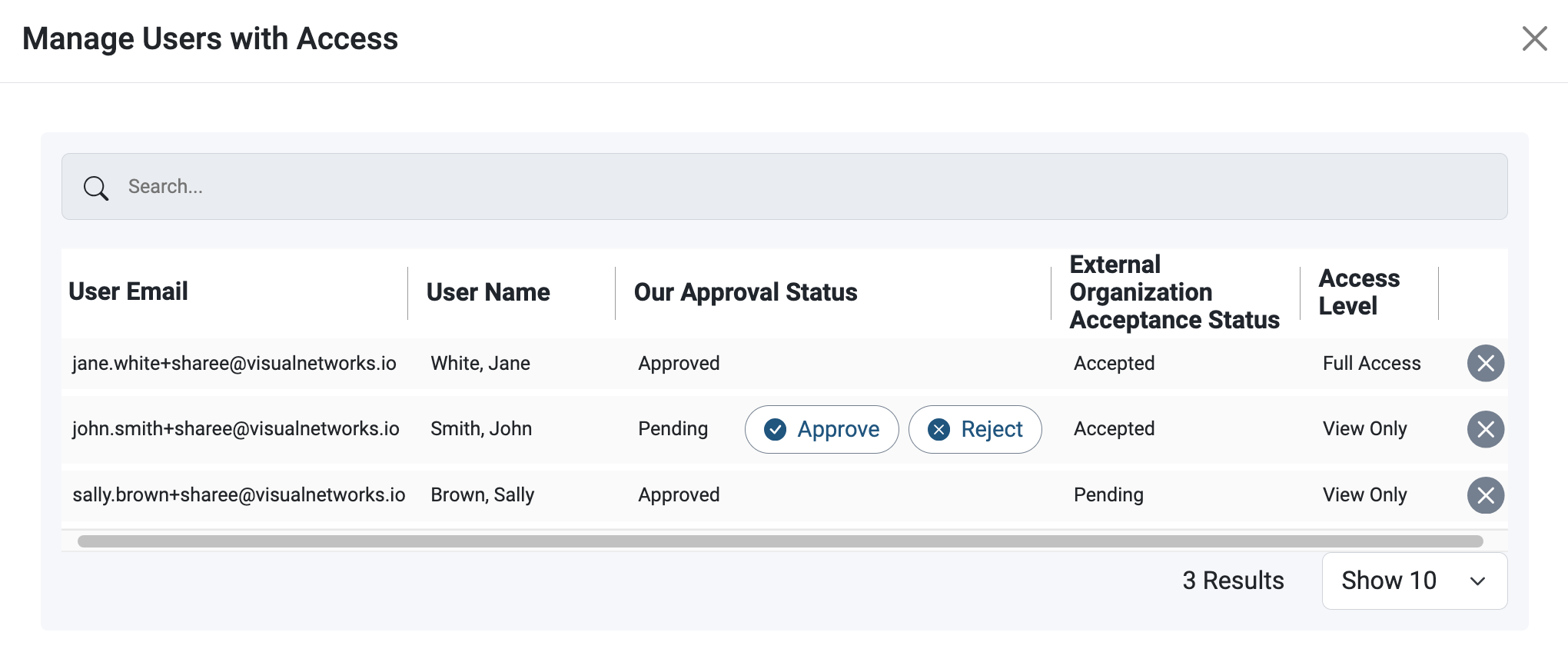
- From the dialog that appears you can:
- Approve or Reject a share with an external user.
- Remove an external user from an OT network share, by clicking the X on the far right.
Managing Users (Sharee View)
To manage an internal user's access to OT networks shared by external organizations, do the following:
- Logged in as an administrator, select the top organization from the sidebar and then click SETTINGS in the header.
- Scroll down to the External OT Networks shared with <YOUR ORGANIZATION NAME> section.
- Find the OT Network of interest and click on Manage Users.
- From the dialog that appears you can:
- Accept or Reject a share with an internal user.
- Remove an internal user from an OT network share, by clicking the X on the far right.
Comments
0 comments
Please sign in to leave a comment.